Connected Apps
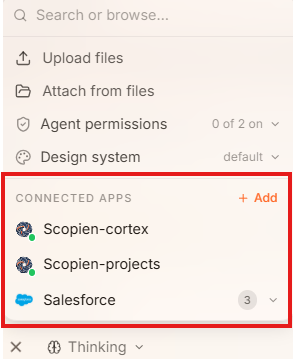
Connected apps are third-party services such as Gmail, Salesforce, Slack, and 700+ others, that you authorize Scopien to access. Once connected, the agent can take real actions inside those platforms on your behalf, such as retrieving emails, updating records, or sending messages, directly from the chat. Each connected app uses your own personal credentials. Connections are private to your account and are not shared across your workspace.
1. How It Works
a. Connection Status
Every connected app displays a status indicator:
| Status | Meaning |
|---|---|
| 🟢 Green | Connection is active and ready to use |
| 🔴 Red | Session has expired — re-authentication required |
b. Selecting a Connection in a Session
When you want the agent to use a connected app, select it from the Connected Apps list in the + Prompt Composer menu before sending your message. The agent will use that connection to act on your behalf.
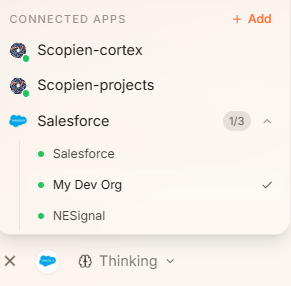
If you have multiple accounts for the same app (e.g., three Salesforce accounts), each is configured as a separate connection with its own name. You select which one to use per message.
c. See All Connections Permission
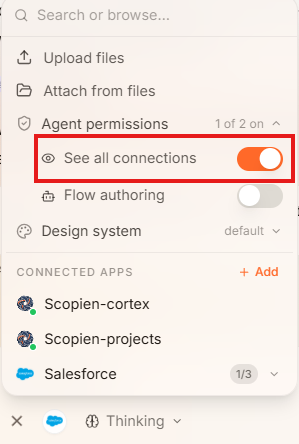
There is an optional permission called See All Connections. When enabled, the agent can automatically discover all your active connections without you needing to manually select one each time. For example, you can simply say "get my last five emails" and the agent will find your email connection on its own.
When this permission is disabled, the agent cannot discover your connections. If you send a prompt that requires one, it will ask you to attach the relevant connection manually before it can proceed.
d. Connection Lifespans
How long a connection stays active depends entirely on the external provider's own policies, not Scopien.
General guidelines:
| Authentication Type | Typical Lifespan |
|---|---|
| Standard OAuth | Shorter-lived; expires relatively quickly |
| Advanced / Custom OAuth | Extended lifespan |
| Service Account | Up to 90 years |
| API Key (e.g., the AI provider) | Indefinite — valid until you manually revoke it |
See Connection Types for full details.
2. Steps to Take
a. Adding a New Connection
- Click the + icon in the Prompt Composer to open the menu and click Add.
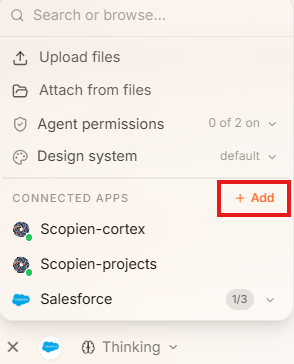
- Select the app you want to connect or type "add" in the Prompt Composer's search bar to trigger the Add Connection popup.
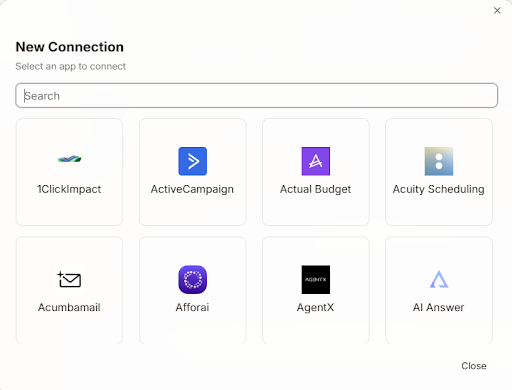
- Follow the authentication steps for that app (OAuth login, API key entry, etc.).
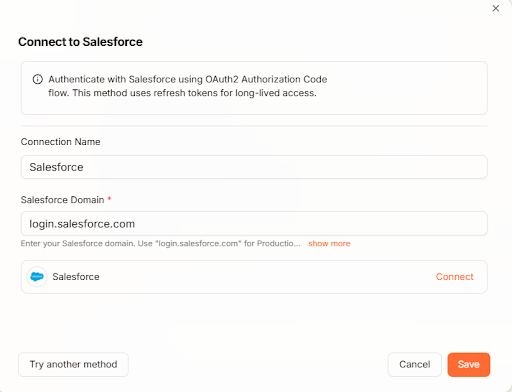
-
Give the connection a unique name if you are adding a second account for the same app (e.g., "Salesforce - Staging").
-
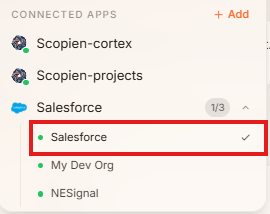
Once connected, a checkmark will appear next to the app name and its icon will appear in the Prompt Composer, confirming it is active and selected.
b. Using a Connection in a Session
- Click the + icon in the Prompt Composer.
- Under Connected Apps, select the connection you want the agent to use. A checkmark in the app list and an app icon in the Prompt Composer will confirm it is active.
- Send your message, the agent will act through that connection.

c. Disconnecting a Connection from a Session
To deselect a connection without removing it permanently:
- Click the + icon in the Prompt Composer.
- Click the app name to remove the checkmark. The connection remains saved but will not be used in the current session.
d. Re-authenticating an Expired Connection
- Navigate to the ScopieFlows.
- Locate the expired connection (shown with a 🔴 red indicator).
- Re-authorize it using the Reconnect button.
e. Deleting a Connection
To remove a Connection permanently:
- Navigate to ScopieFlows.
- Select the connection from the list by checking the checkbox on left-side.
- Delete it by clicking the Delete button on the bottom bar.

Limitations
| Limitation | Detail |
|---|---|
| Permissions | Scopien does not override the external app's own permissions for the user. If your user has write access, the agent can write. Scopien cannot restrict that internally. |
| Chat access = connection access | Any user with chat access can connect to any external app. Scopien does not apply role-based restrictions to personal connections. |
| Mid-task expiry | If a connection expires while the agent is actively executing a task, execution halts immediately. The agent will display an error and ask you to reconnect before it can resume. |
| Deletion | Connections cannot be removed from the Prompt Composer search bar. It must be done through ScopieFlows -> Connections.[b] |
| 700+ app documentation | Step-by-step authentication guides for all supported apps are not included in this documentation. For provider-specific setup steps, refer to the official documentation for that service. |
Tips & Recommendations
- Name your connections clearly
- If you connect multiple accounts for the same app, give each a distinct name (e.g., "Gmail - Personal", "Gmail - Work") so you always know which one you are selecting.
- Keep an eye on the red indicator
- A 🔴 status means the agent will not be able to use that app until you re-authenticate. Do this before starting a task that depends on it.
- Check the provider's policies if you need a long-lived connection
- Service Accounts offer the most stable, long-term authentication where supported.
- Do not share credentials in the Prompt Composer
- Always connect apps through the official Add Connection flow, never by pasting passwords or API keys into the chat.