Response Modes
Response Mode controls how the agent handles your request after you send it. Scopien offers two modes:
- Direct Mode, where the agent acts immediately.
- Plan Mode, where the agent researches, proposes a step-by-step plan, and waits for your approval before doing anything.
Choosing the right mode is the difference between a quick answer and a safe, verifiable execution, especially for tasks that write, update, or delete data.
Select the mode before sending your message by clicking the Thinking icon in the Prompt Composer.
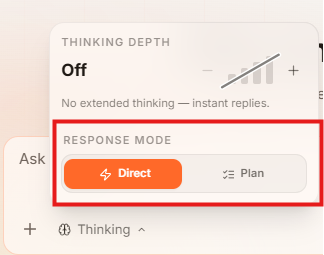
1. Direct Mode
In Direct Mode, the agent begins executing your task immediately after you send a prompt. It does not pause to show you a plan or ask for confirmation. It acts, then reports back.
Best for:
- Simple, low-stakes tasks (retrieving data, sending a single email, generating a quick document).
- Experienced users who know exactly what result they want.
- Repeatable tasks you have already validated in Plan Mode.
2. Plan Mode
In Plan Mode, the agent does research first, generates a step-by-step execution plan, and shows it to you before doing anything. You review the plan, make any changes, and then approve. Only
after your approval does the agent act.
What you can do in the plan review:
- Read each step the agent intends to take.
- Add steps the agent missed.
- Remove steps you do not want.
- Modify a step to use a different approach.
- Prompt the agent to revise its thinking on any step.
Example:
You ask the agent to create a custom Salesforce object for tracking POs.
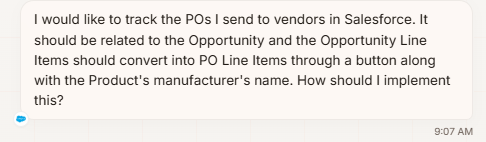
In Direct Mode it proceeds immediately.
In Plan Mode it first checks:
- what you already have in your Salesforce Org

- asks Clarifying Questions
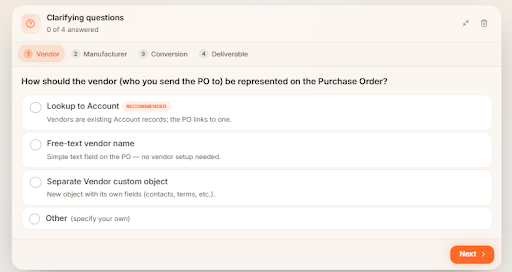
- then recommends an Action plan:
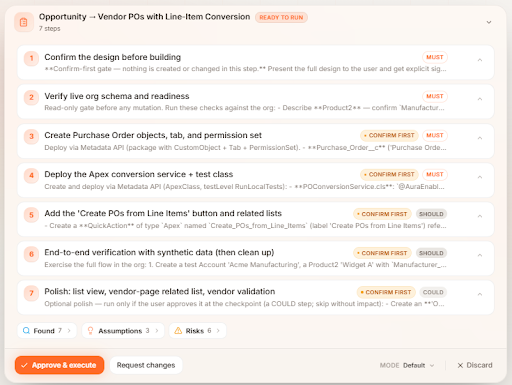
a. Read-Only Restriction During Planning
During the planning phase, the agent is restricted to read-only tools only. It can search the internet, read files, and analyze documents. It cannot write, modify, or delete anything. If the agent attempts to call a write command during plan generation, the system blocks it.
This is by design: the planner is investigative only.
b. Plan Step Priority Tags
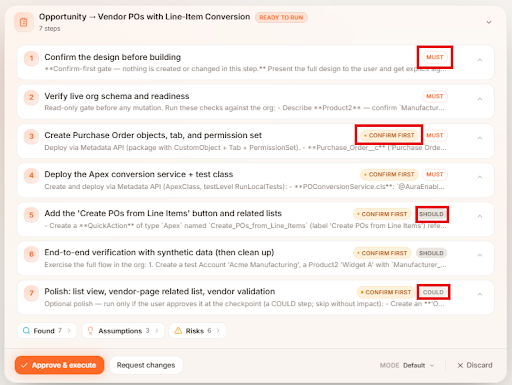
Each step in a plan carries one of three priority tags that control how the system handles failures:
| Tag | What it means | If it fails |
|---|---|---|
| Must | Integral to the plan's success | Execution halts immediately. The user must retry the step before proceeding. |
| Should | Highly recommended but not mandatory | The user is given a choice: retry the step or skip it and move to the next. |
| Could | Optional | The system logs an informational notice and automatically moves to the next step. No user action required. |
| Confirm First | User Confirmation required | The system pauses before that step and presents the results and validations of the previous action. The user reviews the work and manually approves before the agent resumes. |
Example:
As seen in the previous example,
- Steps 1 - 4 are tagged as MUST because without it the request will not be executed.
- Steps 5 - 6 are tagged as SHOULD. These steps should be completed, but if it fails it can be done manually or skipped altogether.
- Step 7 is tagged as COULD because it's an optional step which the user didn’t request but can make the execution better.
- Steps 3 - 7 also has a CONFIRM FIRST tag which means after the previous step is completed and before it executes the next step, it will pause and ask user confirmation to proceed.
c. Execution Modes
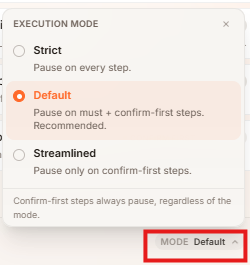
The three execution modes control when the agent pauses and asks for approval during plan execution:
| Mode | When it pauses |
|---|---|
| Strict | At every single step, regardless of tag (Must, Should, or Could). Shows progress and waits for manual approval before each step. |
| Default | Only on Must steps and any step tagged Confirm First. |
| Streamlined | Skips pauses on Must and Should steps. Only pauses on steps explicitly tagged Confirm First. |
d. Research Summaries — Found, Assumptions, Risks
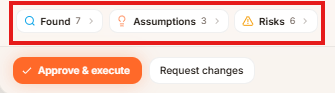
Before presenting the plan, the agent runs an initial research phase and categorizes its findings into three sections:
- Found — Facts the agent confirmed during research. Example: "8 of the top 10 billionaire fortunes are tech-driven." or "A default brand design system was detected with these colors and fonts."
- Assumptions — Parameters the user did not define that the agent adopted on their behalf. Example: "Assumption: the user wants to use the default design system since no alternative was specified."
- Risks — Potential issues the agent identified, along with how it mitigated them. Example: "Risk: real-time financial data fluctuates. Mitigation: a point-in-time timestamp (August 5, 2026) was added to the cover slide."
Not every plan will include all three. Some plans may show only Found, others only Assumptions and Risks, depending on the task.
e. Modifying a Plan
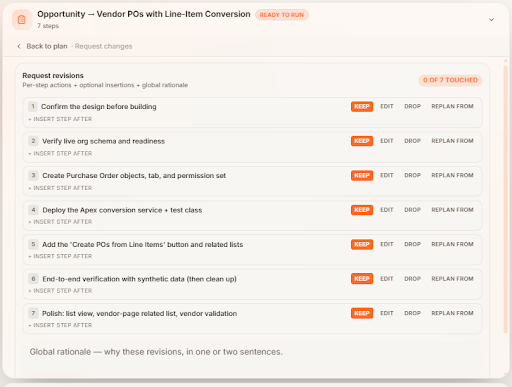
Before approving, you can modify the plan by clicking the Request Changes button:

- Edit an individual step
- Change the approach for a specific step only.
- Drop a step
- Remove a step from the plan entirely.
- Insert a manual step
- Add a step the agent did not include
- Replan From
- Select a step in the plan and prompt a replan from that step forward. The agent preserves all steps before that point and recalculates only what follows
- General prompt
- Type a correction to a false assumption or wrong direction. The agent replans with the corrected parameter
f. Interrupting Execution
Once execution begins, the Interrupt button is available at any time.
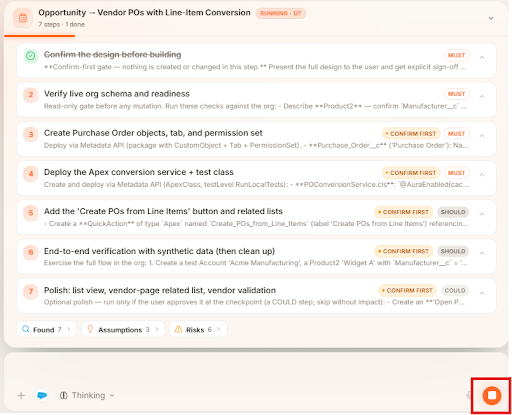
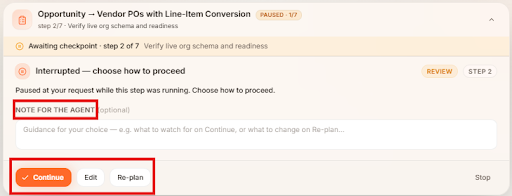
Clicking it pauses execution immediately and presents three options:
- Edit
- Modify the current or upcoming step
- Replan
- The agent evaluates all completed steps and builds a new path forward from the current point
- Continue
- Resume execution as planned
- Note for the Agent (optional)
- Guide the agent at this point with additional context or considerations.
Note: If you want to undo the changes made by an already-completed step, you cannot backtrack directly. You must instruct the agent to add a new step specifically designed to reverse or delete what the previous step did.
g. Parallel Step Execution
When two or more steps are independent of each other (no dependencies between them), the agent may execute them concurrently. How it handles this depends on the agent and the complexity of the task, there is no fixed rule or cap.
When to Use Which Mode
| Situation | Recommended mode |
|---|---|
| Fetching or reading data | Direct |
| Simple file or report generation | Direct |
| You're an experienced user and confident in the outcome | Direct |
| Any write, update, or delete operation | Plan |
| Salesforce or database modifications | Plan |
| Multi-step workflows | Plan |
| First time performing a complex task | Plan |
| High-sensitivity tasks where accuracy matters most | Plan |
Limitations
- No automatic safety switch
- Scopien does not automatically force Plan Mode when a prompt is potentially destructive. You must select Plan Mode yourself.
- No backtracking on completed steps
- Once a step is executed, you cannot undo it directly; you must add a new reversal step.
- Plan generation is read-only
- If a task requires the agent to write during the planning phase itself, that action is blocked until the plan is approved.
- Prompt-triggered planning is not supported
- Writing "write me a plan" in a Direct Mode prompt may sometimes trigger the planner automatically, but this behavior is inconsistent and not an engineered feature. Use the manual Direct / Plan toggle instead.
Tips & Recommendations
- Default to Plan Mode for anything that modifies data or involves multiple steps. Direct Mode is best reserved for reads, retrievals, and tasks you have already run and validated.
- Plan Mode is especially valuable for non-technical users. The plan surfaces what the agent intends to do in plain language, so you can confirm it matches what you actually want, even without technical expertise.
- Review the Found / Assumptions / Risks summary before approving, that's where the agent tells you what it's unsure about.
- Use Confirm First on high-stakes steps so you can inspect the results of each action before the agent moves on.
- Prefer Streamlined mode once you trust a workflow, and Strict mode for sensitive or unfamiliar operations.