Files & Attachments
Files in Scopien come from two directions:
| Action | What it means |
|---|---|
| Upload | Transfer a file from your local operating system into Scopien for the first time |
| Attach | Reference a file already stored in Scopien and include it in your current message |
This article covers both; how to get files into a session, where they live, how to access them again, and what limits apply.
1. Uploading a File
To add a file from your local computer:
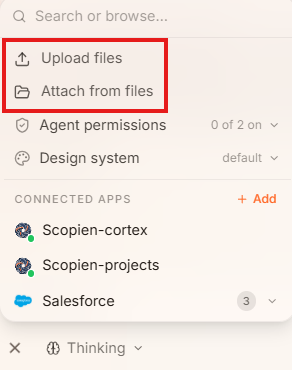
- Click the + icon in the composer to open the menu
- Select Upload Files.
This opens your operating system's file picker. You can also drag and drop files directly into the composer. Once uploaded, the file is attached to your current message and the agent can read and work with it.
You can also upload files directly to My Files without going through the composer. This is useful when you want to store files in advance and have them ready to attach to future sessions.
2. Attaching a File Already in Scopien
If you have previously uploaded a file, or if the agent has generated one as an artifact, you do not need to re-upload it.
- Click the + icon in the composer
- Select Attach Files to browse files already stored in the platform and reference them in your message.
The Attach panel is organized into five tabs:
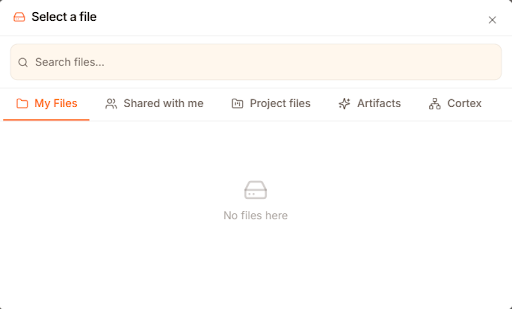
a. My Files
Your personal storage. This includes any files you have manually uploaded. Files here are private to you unless explicitly shared.
b. Shared with Me
Files that other workspace members have shared directly with you. Files in personal storage do not appear here unless another user has granted you access.
c. Project Files
A dedicated folder automatically created for each project you are part of. Files stored here are accessible to all members of that project.
d. Artifacts
Files generated by the agent during your chat sessions, including HTML, code, CSVs, presentations, PDFs, SVGs, and diagrams. Each update to an artifact creates a new version rather than overwriting the original, so you can always reference a previous version.
See Artifacts for more details.
e. Cortex
Cortex is a shared workspace, similar to Microsoft SharePoint, where files are attached directly to specific database records (such as a person, company, or note). All team members with permission to view the underlying record can access its files. Access is governed automatically by the record's permissions, so no manual sharing is needed. Clicking a file in this tab takes you directly to the linked record.
See Cortex for more details.
Supported File Types
Most common file types are supported for upload and attachment. Typical examples include:
| Category | Examples |
|---|---|
| Documents | PDF, DOCX, TXT, XLSX, PPTX, CSV, MD |
| Images | PNG, JPG, SVG |
| Code & Data | HTML, JSON, YAML, XML |
| Archives | ZIP |
If you are unsure whether a specific file type is supported, try uploading it. The composer will indicate if the file cannot be processed.
Limitations:
| Limit | Value |
|---|---|
| Maximum file size per file | 50 MB |
| Maximum files per message | 10 files |
| Maximum total data per message | 500 MB |
Tips & Recommendations
- Use Attach instead of Upload when a file is already in Scopien. It avoids duplicating files and keeps your storage clean.
- The agent automatically saves files it generates to your storage, so they will be available to attach in future sessions without re-creating them.
- For sensitive files tied to specific records, keep them in Cortex so access is governed by the record's permissions automatically.