Lead Discovery Agent
The Lead Discovery Agent finds new sales leads for you automatically. You describe who you want to reach such as industry, role, location, and what you are selling. The agent searches for matching contacts, gathers additional context on each one, evaluates how promising they are, and saves them to Cortex, your built-in CRM, ready for outreach.
It is the first step in your sales pipeline. Everything that comes after like cadences, outreach messages, follow-ups builds on the lead records the agent creates here. You can also skip the search entirely and upload your own list of contacts, and the agent will enrich, score, and store those instead.
Before You Start
Three things determine how the agent behaves:
1. Connect Cortex (required)
- The agent saves every lead it finds to Cortex.
- If the Cortex connection is not enabled, the agent will still run its search and show results in the chat, but it cannot store them.
- It will stop and ask you to enable the connection before saving anything.
- Make sure Cortex is connected before you begin.
- To connect Cortex:
- Navigate to the + menu in the Chat.
- Search for Scopien Cortex
- Select it from the list so a checkbox appears in front of it, and the Cortex icon appears in Prompt Composer.
- Alternatively, you can enable the See all Connections permission under Agent permissions. This makes Cortex (and other connected apps) available to the agent without a manual connection.
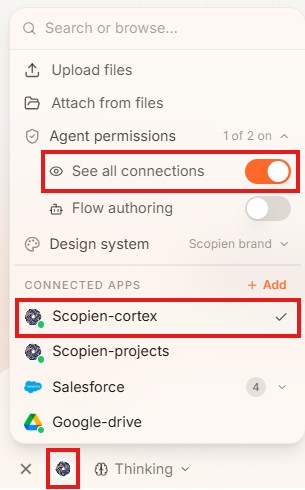
See Connected Apps for more details.
2. Create a Territory (required)
- If you only want leads from a specific region for example, New Jersey Territory, create a Territory and assign it to your Offering.
- The agent uses it to filter which leads it fetches.
- To create a new Territory:
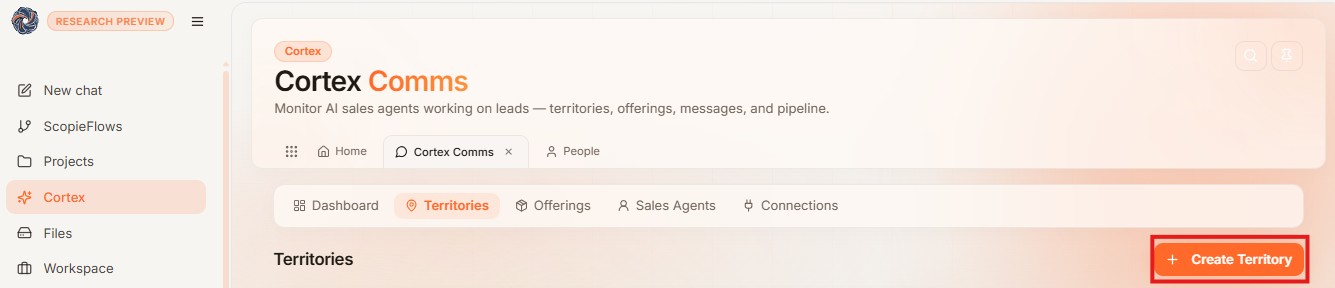
- Navigate to the Cortex tab → Cortex Comms → Territories
- Click the Create Territory button.
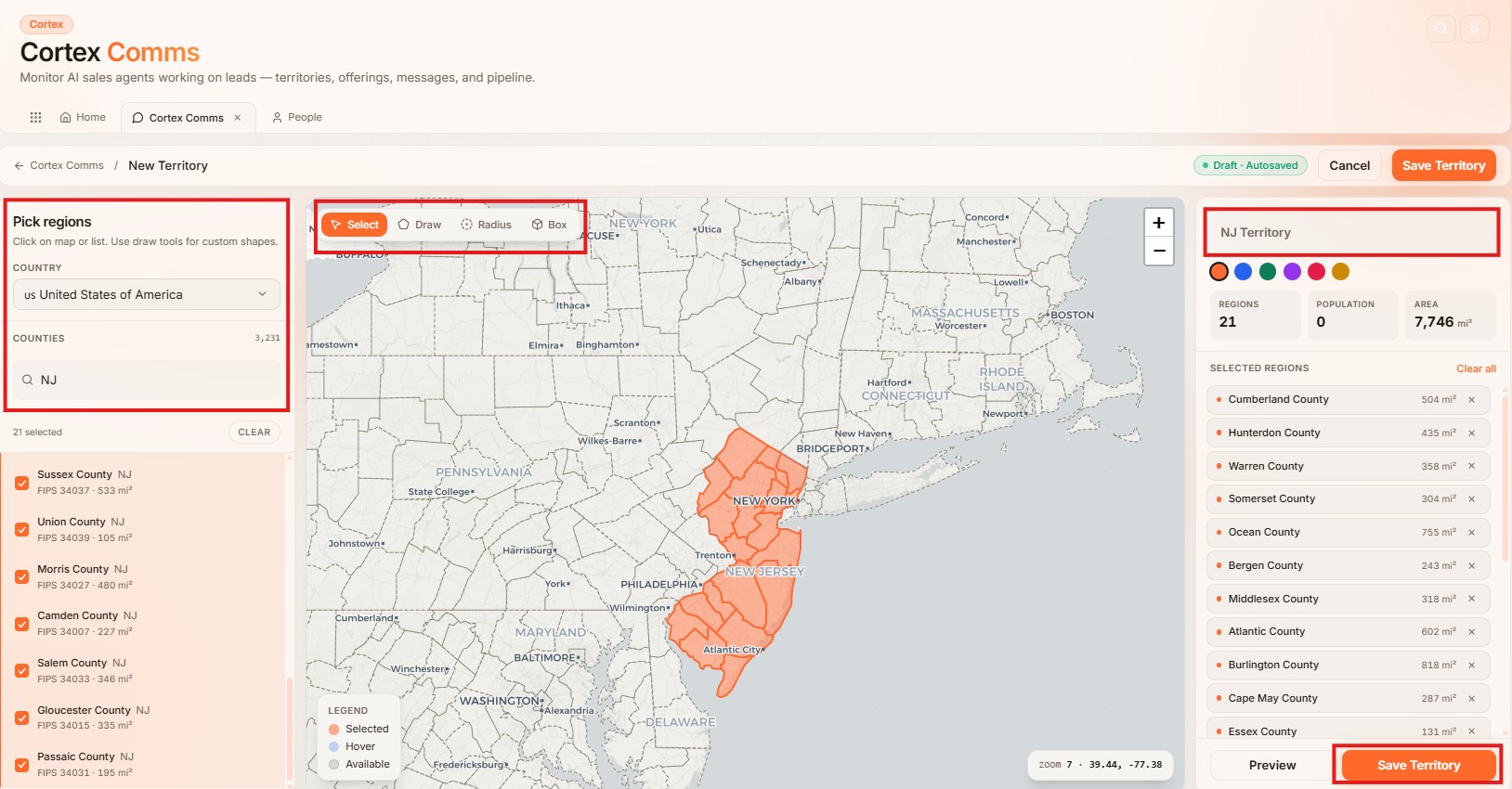
- Select Country and Counties through the search bar under the Pick Regions.
- Alternatively, use the Map to select the regions.
- Name the Territory and assign color if required.
- Click Save Territory.
3. Define your Offering (required)
- An Offering is the product or service you are selling and the context the agent needs to know who to look for and how to approach them.
- Outreach cadences cannot start without an Offering attached to a lead, so it is worth defining yours first.
- You can either describe what you are selling directly in your prompt, or point the agent to an Offering you have already saved.
- To configure the Offering:
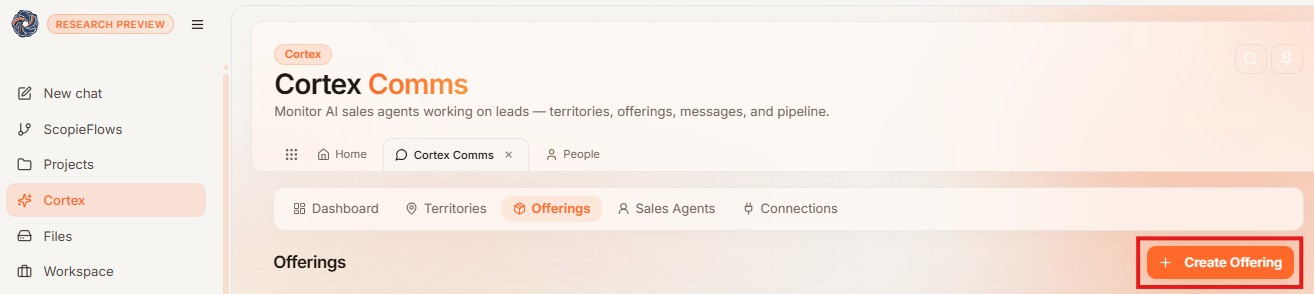
- Navigate to the Cortex tab → Cortex Comms → Offerings
- Click the Create Offering button
- Give details about your offering, what markets, industries, and titles to target and relate it to a territory.
- Save
Where Your Leads Live: Cortex
Cortex is the CRM that manages your entire sales process. Every lead the agent finds becomes a People record, and each People record is linked to a Company record, which stores the company's profile and timeline. Every record has five tabs:
- Home
- basic information of lead like name, company, job title, LinkedIn URL, email, phone, and who added the record and when.
- You can add or edit this information yourself, or let the agent populate it.
- Timeline
- a log of every activity and data-enrichment update performed on the lead, whether by the agent or by you.
- Tasks
- outreach tasks and reminders, such as sending a LinkedIn connection request or following up by email.
- Tasks are mainly created by cadences, but you can add your own reminders too.
- Notes
- additional context gathered from social media, LinkedIn, websites, X, and other sources.
- Files
- relevant attachments.
How the Agent Works
Every time the agent runs, it moves through five stages in order:
1. Builds your Ideal Customer Profile (ICP)
- Before searching, the agent defines exactly who you are looking for.
- It creates an ICP, a keyword list derived from your prompt and your Offering that guides everything that follows.
2. Searches for leads
- The agent queries multiple lead sources and returns matching contacts: names, email addresses, LinkedIn URLs and other relevant information.
- Phone numbers are not retrieved automatically, unless explicitly mentioned in the prompt.
3. Enriches each lead
- The agent digs deeper, pulling additional context on every contact from LinkedIn, X, company websites, and web searches such as what the person does, what their company is about, and anything else that helps you reach out intelligently.
4. Analyzes and Scores
- AI evaluates the enriched data and produces three things for each lead:
- Outreach hook
- a suggested angle for your first message to this person.
- Pain points
- the challenges the lead is facing, drawn from their LinkedIn activity, website, and company context.
- Score
- a 0–100 rating based on data completeness and how closely the lead matches your prompt.
- Scores above 70-100 are strong leads; 40-69 are medium; below 39 are low.
- Outreach hook
5. Saves to Cortex
- Everything is committed to Cortex as People records, linked to their companies, where you can review, edit, or start outreach.
Using the Lead Discovery Agent
1. Writing a prompt
- The agent activates when your prompt mentions fetching or extracting leads or contact
For example, "fetch 10 leads…", "extract leads…", or simply "leads".
- The more context you give such as industry, location, role, and what you are selling, the more targeted the results. Therefore, it is recommended to mention the Offering created in the Cortex.
- If a prompt is too generic, the agent offers clarification suggestions instead of guessing.
2. Watching it run
- Once triggered, the agent walks through the five stages in the chat, so you can follow along as it searches, enriches, and scores.
- When it finishes, it confirms how many leads were saved.
3. Reviewing what it found
- After the lead discovery process completes successfully, the artifact side panel opens automatically with a summary of the fetched leads. For full details, open Cortex to review the new records.
- The table view shows the main fields by default.
- This transparency is useful before you (or the agent) draft outreach messages.
- Everything the agent created can be edited by you.
Importing Your Own Leads
If you already have a list of leads from a CSV or Excel file, you don't need the agent to search. Upload your file and prompt it to enrich, analyze, and score your leads instead:
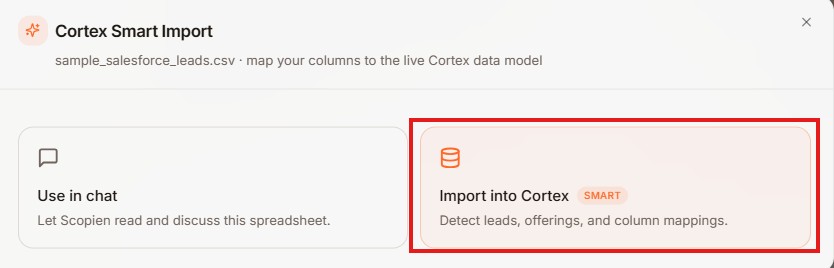
- Attach the file in the chat and choose to import it into Cortex.
- Select the sheet you want to import (one sheet at a time).
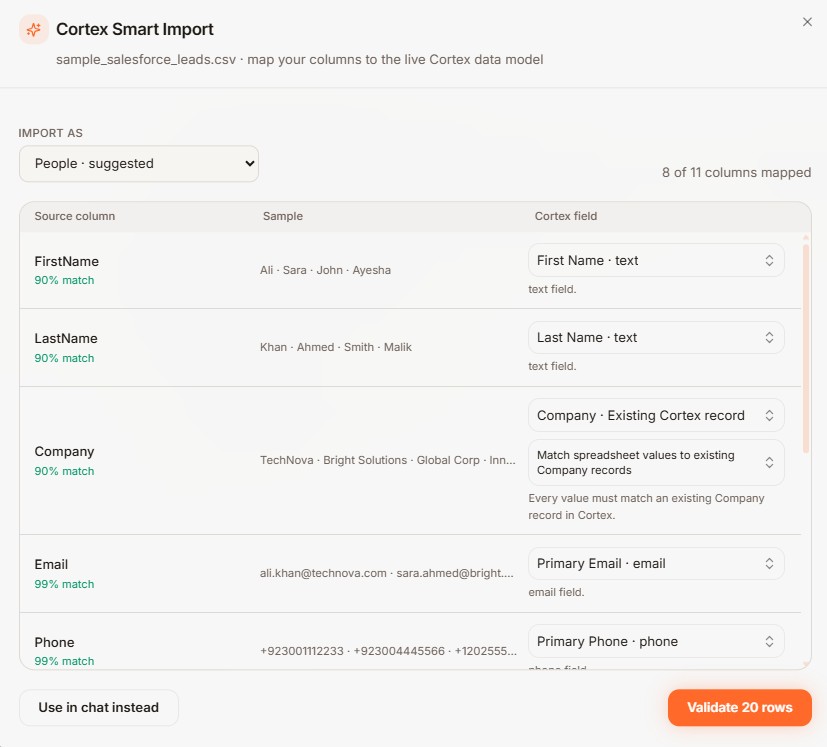
- Choose the destination i.e. People or Companies.
- Review the column mapping. The agent automatically matches your columns to Cortex fields such as first name, company, title, email, and phone. You can adjust or skip any mapping.
- Check for duplicates. The system flags duplicates automatically, matching on email address and LinkedIn URL.
- Once leads are created in Cortex, prompt the agent to run the lead discovery agent on the newly added leads.
- The agent will enrich, analyze and score them, and update the lead records in Cortex.
Limitations
- The agent performs best on smaller batches. Beyond 50–100 leads it switches to batch processing, which takes longer.
- Scoring is predetermined. Scores are based on data completeness and relevance to your prompt.
- Cortex and Comms are being redeveloped — this documentation will be updated as those features evolve.
Tips & Recommendations
- Keep batches to 10-50 leads for quality leads. This keeps search and enrichment within a 5-10 minute window and avoids credit issues.
- Mention "leads", "fetch leads", or "extract leads" explicitly for consistent execution.
- Attach an Offering to give the agent more context.
- Ask for phone numbers explicitly when you need them; they are not fetched by default.
- Reviewing the AI analysis columns such as outreach hooks, pain points, and score breakdown gives you full visibility into what the agent will use to draft outreach messages.
- Enable the Cortex connection before you start, so results save automatically.
- Add leads manually if you prefer. Cortex lets you create records directly, bypassing the agent entirely when you just want to log a contact.