The Chat Interface
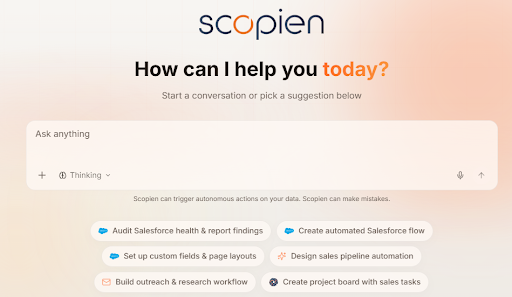
The chat interface is where everything happens. At the center is the Prompt Composer, your main input area. Around it are a set of tools that shape how the agent receives your instructions, what it can access, and how it responds.
This article introduces each element. Each section links to a dedicated article with full details.
1. The Prompt Composer
The Prompt Composer is the main input area on the homepage. You type prompts here, attach files, select connected apps, and configure how the agent responds. Everything starts from the Prompt Composer.
2. Quick Start Suggestions
Below the Prompt Composer, Scopien displays a set of quick-start session prompts. When you first join, these are generic examples for instance:
"Post CRM leads to Slack."
Clicking any suggestion reveals the full prompt text before you send it, so you always know exactly what will run.
As you keep using the platform, the suggestions evolve. The agent learns from your chat history and surfaces prompts based on what you actually do, for example,
"Get my last five emails"
"Pull open opportunities from Salesforce."
3. The Prompt Composer Menu ( + button)

Clicking the + icon in the Prompt Composer opens a menu with everything you need to enrich your message or configure the agent before sending.
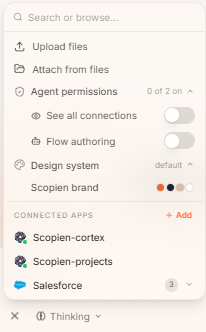
a. Upload Files
Transfer a new file from your local computer into Scopien and include it in your current message. Supports most common file types up to 50 MB per file, with a maximum of 10 files per message.
See Files & Attachments for full details.
b. Attach Files
Reference a file already stored in Scopien, no re-uploading required. Attach pulls from your existing files in the platform.
See Files & Attachments for full details.
c. Agent Permissions
Control what the agent is allowed to do during a session. Two key toggles live here:
- See All Connections
- When enabled, the agent can access any of your active connected apps without you needing to manually select each one before sending a message.
- Flow Authoring
- Grants the agent permission to draft and publish automated workflows (ScopieFlows).
Note: even with this enabled, the agent cannot publish a flow without your explicit approval.
See Connected App for full details
See ScopieFlows for full details
d. Design Systems
Manage visual branding for your workspace such as logos, fonts, color themes, and corner radii, with the ability to preview in both light and dark modes. They can be applied automatically whenever you draft artifacts such as documents, presentation decks, spreadsheets, PDFs and more.
See Design Systems for full details.
e. Connected Apps
The Prompt Composer (+) menu also displays your list of connected third-party apps (Gmail, Salesforce, Slack, and 700+ others). Select one or more to include in your session. The agent will use those connections to take real actions inside those platforms directly from the chat.
See Connected App for full details.
f. Search or Browse Bar
The Prompt Composer includes a built-in search bar that surfaces available actions by keyword. Type any term to instantly find what you need without navigating away.
Common actions you can search for:
| Search term | What it opens |
|---|---|
| add | Add Connection — opens the connection setup popup |
| upload | Upload a file from your local computer |
| attach | Attach a file already stored in Scopien |
| flow | Flow Authoring (under Agent Permissions) |
| App name (e.g., Gmail) | Your connected accounts for that app |
Note:* Disconnecting or Deleting a connection is* not* available through the action search bar.*
See Connected App for full details on disconnecting and deleting a connection.
4. Response Mode
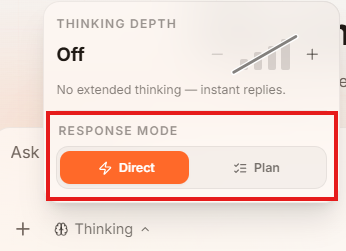
Response mode controls how the agent handles your request after you send it.
-
Direct Mode
- The agent acts immediately without pausing.
- Best for simple reads, retrievals, and tasks you've already validated.
- No plan shown, no approval step.
-
Plan Mode
- The agent researches your request first, then generates a step-by-step plan and shows it to you before doing anything.
- You can review, edit, add, or remove steps before approving.
- Once approved, the agent executes.
- Recommended for any task that writes, updates, or deletes data, or involves multiple steps.
See Response Modes for a full breakdown.
5. Thinking Depth
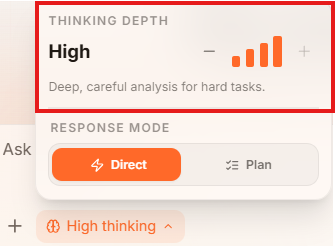
Controls how much internal reasoning the agent performs before responding. At lower settings the agent responds quickly based on its first interpretation. At higher settings it deliberates more thoroughly, working through the problem, considering alternatives, and checking its own conclusions before answering.
Adjust thinking depth in the Prompt Composer before sending. Use lower settings for simple lookups; use higher settings for complex analysis, sensitive tasks, or anything involving data modifications.
See Thinking Depth for full details.
6. Agent Memory
Agent Memory lets the agent hold on to important context across sessions. As you work, the agent records key facts, decisions, and preferences. It carries them into future conversations, so you don't have to re-explain yourself every time.
You stay in control: you can view, edit, or clear what the agent remembers at any time.
See Agent Memory for full details.
7. Voice-to-Text
The Prompt Composer supports voice input. Rather than typing, you can speak your prompt and the agent will transcribe it. This is accessible directly from the Prompt Composer and supports the same full range of inputs as typed messages.

8. Artifacts
As the agent works, it may generate files such as code, HTML, CSVs, PDFs, diagrams, and more. These outputs are collected in the Artifacts panel, where you can view, download, share, or jump back to the source message that generated them.
Artifact versioning is maintained automatically: when the agent updates a file, it creates a new version rather than overwriting the original.
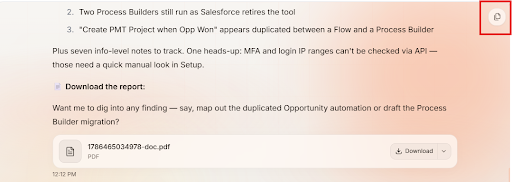
See Artifacts for full details
9. Chat Branching
Chat branching lets you fork a conversation to explore a different direction without losing your original thread. If you want to try a different approach, ask a side question, or test an alternative workflow, you can branch from any point in the chat and work in that new context independently.

See Chat Branching for full details.
10. Copy to Clipboard
Every agent response includes a copy button so you can instantly grab the output and use it elsewhere.

11. Feedback
Each response also has a thumbs up / thumbs down option. If a response misses the mark, selecting thumbs down prompts you to specify what went wrong, for example, an incorrect answer or an ignored instruction. Feedback is reviewed by the team to improve how the agent is prompted and tuned over time. It does not trigger automatic model retraining.

12. Quote
If you select any text within an agent response, an options appears ‘Quote’
Selecting Quote copies that selected text directly into the Prompt Composer as a reference. Use this when you want to ask a follow-up question or give feedback about a specific part of a response, rather than re-typing or describing it, the exact text is right there in your next prompt.

13. Read Aloud
The chat interface includes a built-in read-aloud feature that lets you listen to any agent response rather than reading it.
- Click the read-aloud button on any response.

- Alternatively select text from the response, and click the Read Aloud button.

- Clicking the three dots, will give you two options:
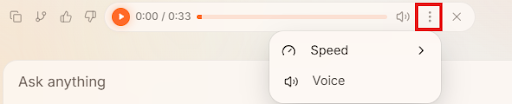
- Speed - to increase or decrease the speed of voice.
- Voice selector to choose from multiple available voices and accents.
- The agent reads the selected response in the chosen voice.
Note: Read Aloud is a playback feature for agent responses. Full screen reader accessibility for assistive technology is not yet implemented and is on the product roadmap.